Create Deployment Campaign
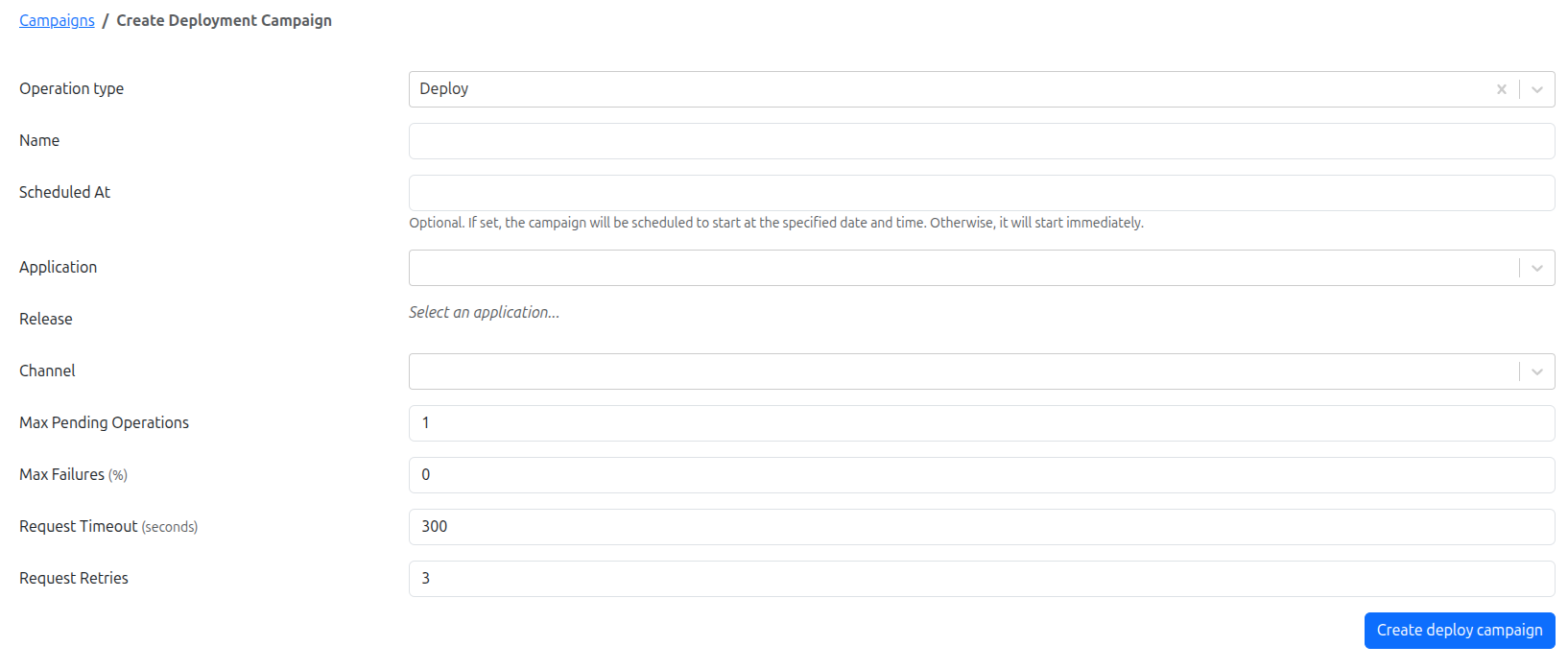
The Create Deployment Campaign page allows creating a new Deployment Campaign.
When creating a Deployment Campaign, the following information must be provided:
- Campaign Name: A descriptive name to identify the campaign.
- Operation Type: The type of operation to perform (see Operation Types for details).
- Application: The application whose release will be operated on.
- Release: The target release to deploy or operate on.
- Target Release (upgrade only): The new release version to upgrade to.
- Channel: The target Channel for the Deployment Campaign. All devices in this channel will be targeted.
- Scheduled Time (optional): The time at which the campaign should start executing. If not provided, the campaign will start immediately upon creation.
- Deployment Mechanism properties (see Deployment Mechanism for details).
- Per-container file configuration (for deploy and upgrade operations, see below): custom file binds and env files applied to every targeted device.
The Deployment Campaign information can be provided using the form, and pressing the Create button saves the Deployment Campaign.
Once created, the Deployment Campaign will begin executing operations towards the devices at the scheduled time (or immediately if no scheduled time is provided). Its progress can be checked from the Device Manager Dashboard or through Device Manager GraphQL API.
The campaign will "snapshot" the Devices belonging to the Channel when it's started, and will target only those. If additional Devices are added to the Channel after the Deployment Campaign is created, they won't be included in this campaign and will require a separate campaign to be started.
Operation Types
Deployment Campaigns support five different operation types, each serving a specific purpose in managing containerized applications on your device fleet:
- Deploy: Installs a new application release to devices that don't currently have it deployed.
- Upgrade: Transitions devices from one release version to another within the same application. The old deployment remains on the device after upgrade.
- Start: Starts containers for deployments of that application release.
- Stop: Halts running containers without removing the deployment from the device.
- Delete: Completely removes a deployment and all its associated containers from devices. This operation is destructive and cannot be undone.
Deployment Mechanism
The Deployment Mechanism controls how the campaign executes operations across your device fleet. Currently, Device Manager supports the Lazy deployment mechanism.
Lazy Deployment Mechanism
The Lazy mechanism executes operations gradually, controlling the number of concurrent operations and handling failures gracefully.
The properties of this Deployment Mechanism are:
- Max Failure Percentage: The maximum percentage of failures allowed over the number of total targets. If the failures exceed this threshold, the Deployment Campaign terminates with a failure.
- Max In-Progress Deployments: The maximum number of concurrent operations. The Deployment Campaign will have at most this number of operations that are started but not yet finished (either successfully or not).
- Create Request Retries: The number of times an operation must be retried on a specific Device before considering it a failure. Note that the operation is retried only if the request doesn't get acknowledged from the device.
- Request Timeout: The timeout (in seconds) to wait before considering a request lost (and possibly retry).
Per-container file configuration
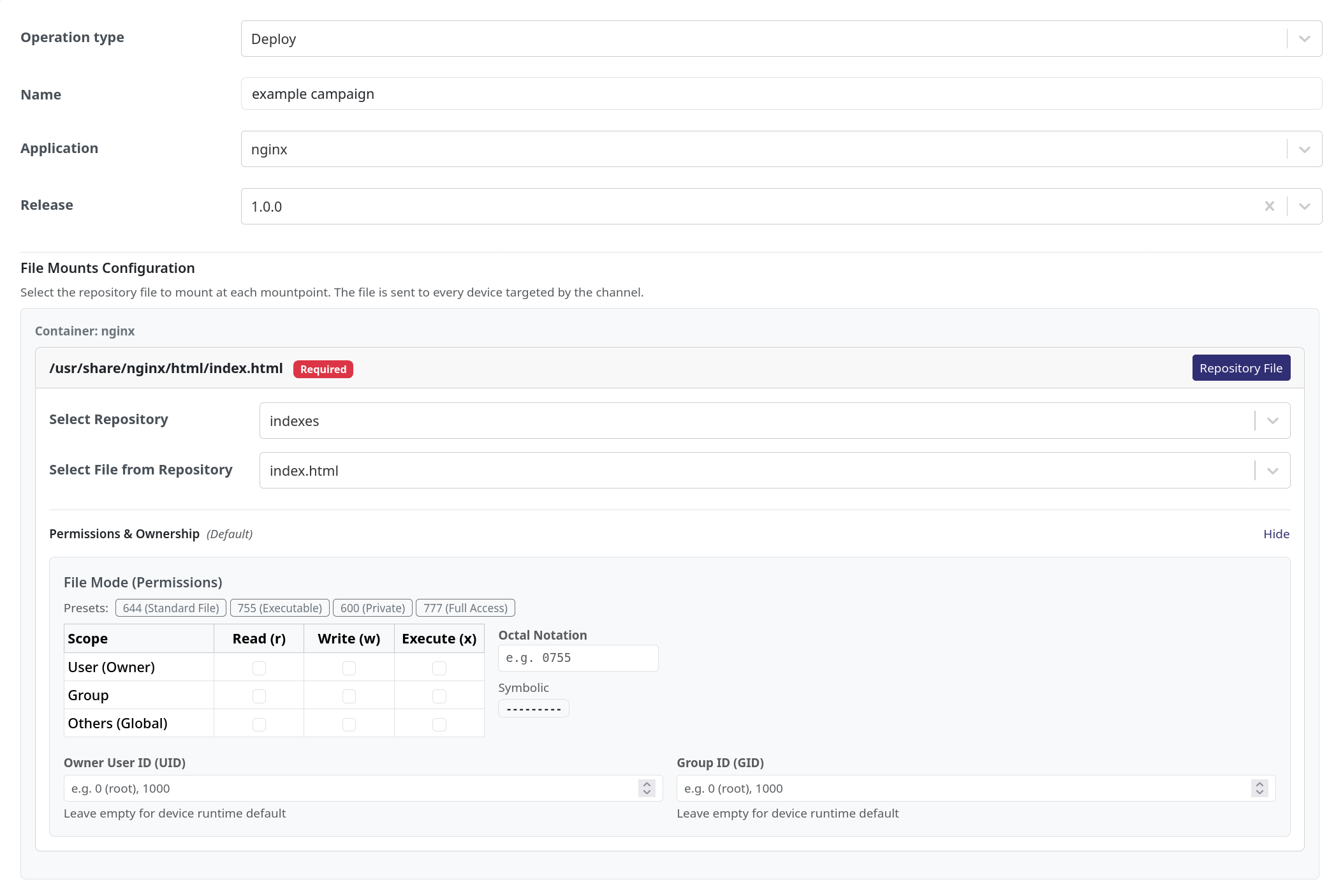
For deploy and upgrade campaigns, the Create Campaign page lets you specify the same per-container file options available in a single-device deployment:
- After selecting the application and release, expand the per-container section
- For each container that declares file mounts, keep the default file or choose a custom file bind for that mountpoint. The same bind is applied to every device targeted by the campaign
- The same rules apply as for single-device deployments: binds only override content for the campaign targets, and a required mount with no default file and no custom bind prevents the container from starting.