Managing Volumes
Through the Volume Management section, you can:
- Create a new volume
- View volume details and driver configuration
- Delete a volume (when not used by a container)
Creating a Volume in Device Manager
-
Navigate to the Volumes section of the Device Manager web interface.
-
Click Create Volume.
-
Fill out the volume configuration form:
- Label – Provide a descriptive name for the volume. (Required)
- Driver – Select a Docker-supported volume driver. (Optional; defaults to
localif not set) - Options – Enter a JSON object containing driver-specific configuration options. (Optional; e.g., NFS configuration, mount flags, custom driver parameters)
-
Click Create to save the volume.
Using Volumes
Volumes can be attached to containers during the container configuration step when creating a release. This enables persistent storage that survives container restarts, updates, and recreation.
Attaching Volumes to Containers
When creating a container as part of a release:
- Navigate to the container creation step in the release workflow.
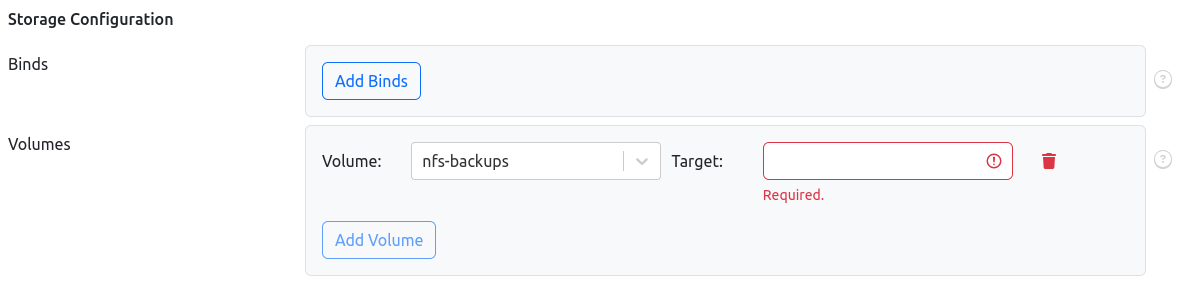
- Open the Storage Configuration section.
- In the Volumes field:
- Select an existing volume by its Label.
- Specify the Target path inside the container where the volume should be mounted.
Managing Existing Volumes
In the Volumes section of Device Manager, you can view a table listing all created volumes with key attributes such as Label and Driver
-
You can search and filter volumes by label or driver.
-
Clicking a volume’s Label opens a detailed page showing all configuration values.
-
The Details page includes a Delete button.
- Note: A volume can only be deleted if it is not currently used by any container.
This provides a clear overview for inspecting and maintaining storage resources across your deployments.
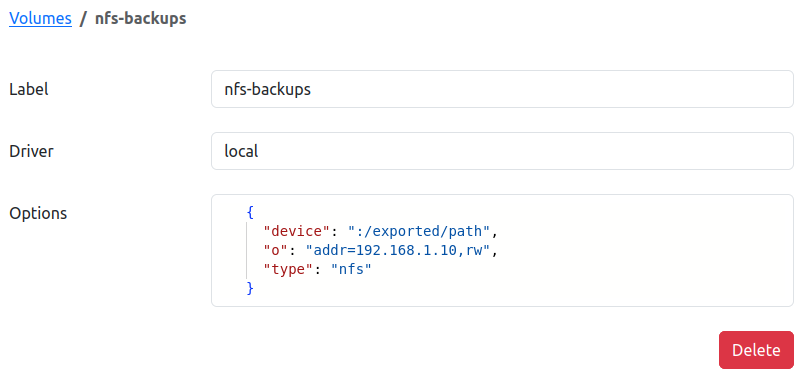
Note: If no driver or options are specified, as mentioned earlier, Docker uses the default
localdriver, stores the volume on the host filesystem (typically under/var/lib/docker/volumes/), and it remains fully functional for mounting into containers.
Best Practices
- Volumes should only be removed when no container is using them.
- Use driver options carefully incorrect values may prevent Docker from creating or attaching the volume.
- If you need to map host filesystem paths directly, consider bind mounts, not Docker volumes.