SOM-COMe-CT6-Dragonwing-IQ-X — Engineering Sample Evaluation Kit (ES1)
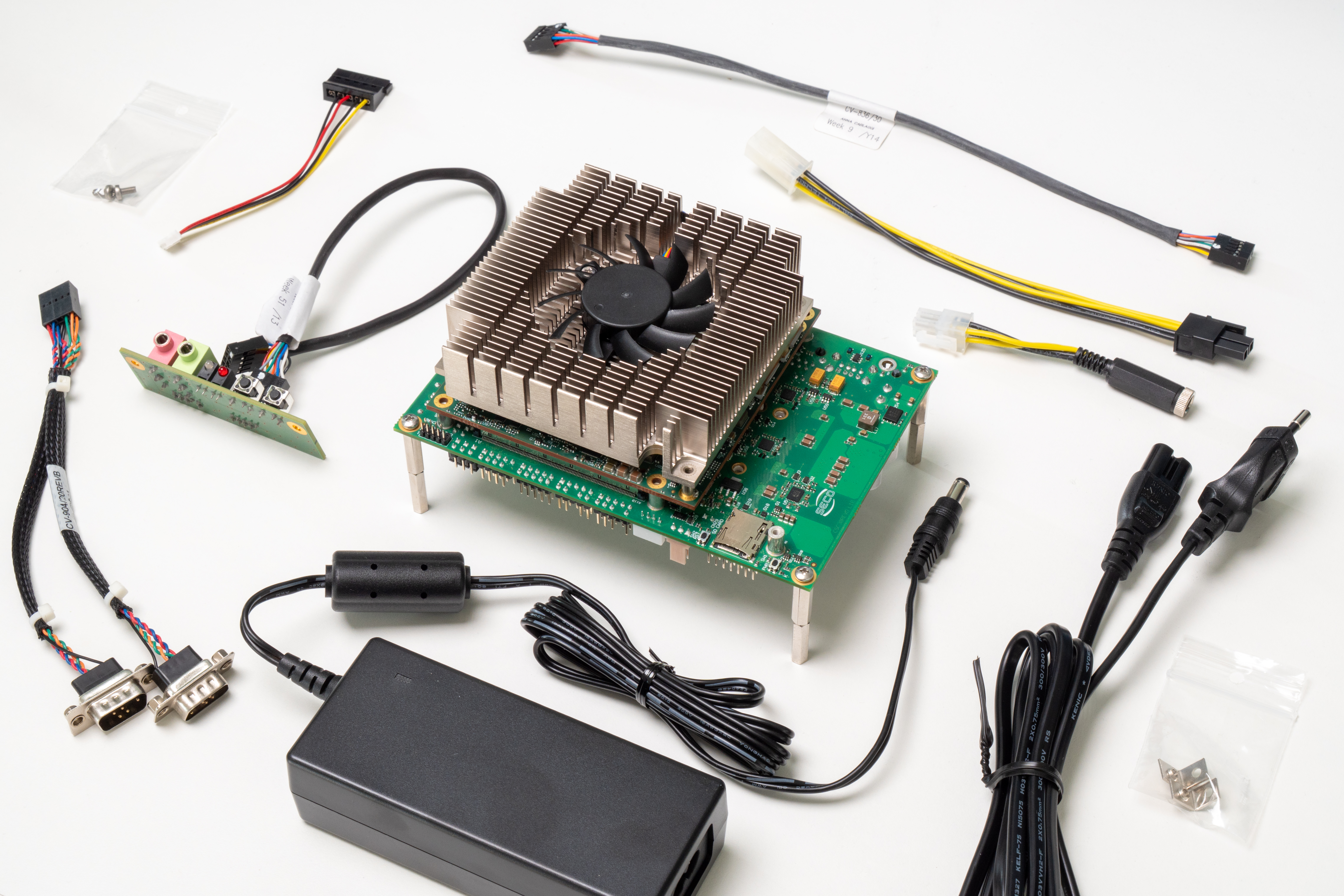
This page describes how to quickly get started with the Engineering Sample Evaluation Kit for the first Engineering Sample release (ES1) of the SOM-COMe-CT6-Dragonwing-IQ-X. You will find setup instructions, current feature status, and a clear list of I/O that is working vs not yet supported on ES1.
This is an engineering sample platform intended for evaluation and early development. Hardware and software behavior may change in subsequent revisions.
Technical Documents
At the following Links you will find documentations like Manual and Rev. specific documents.
Product page
Developer center resources
Manual
Datasheet
Support/ticketing
What’s inside the kit
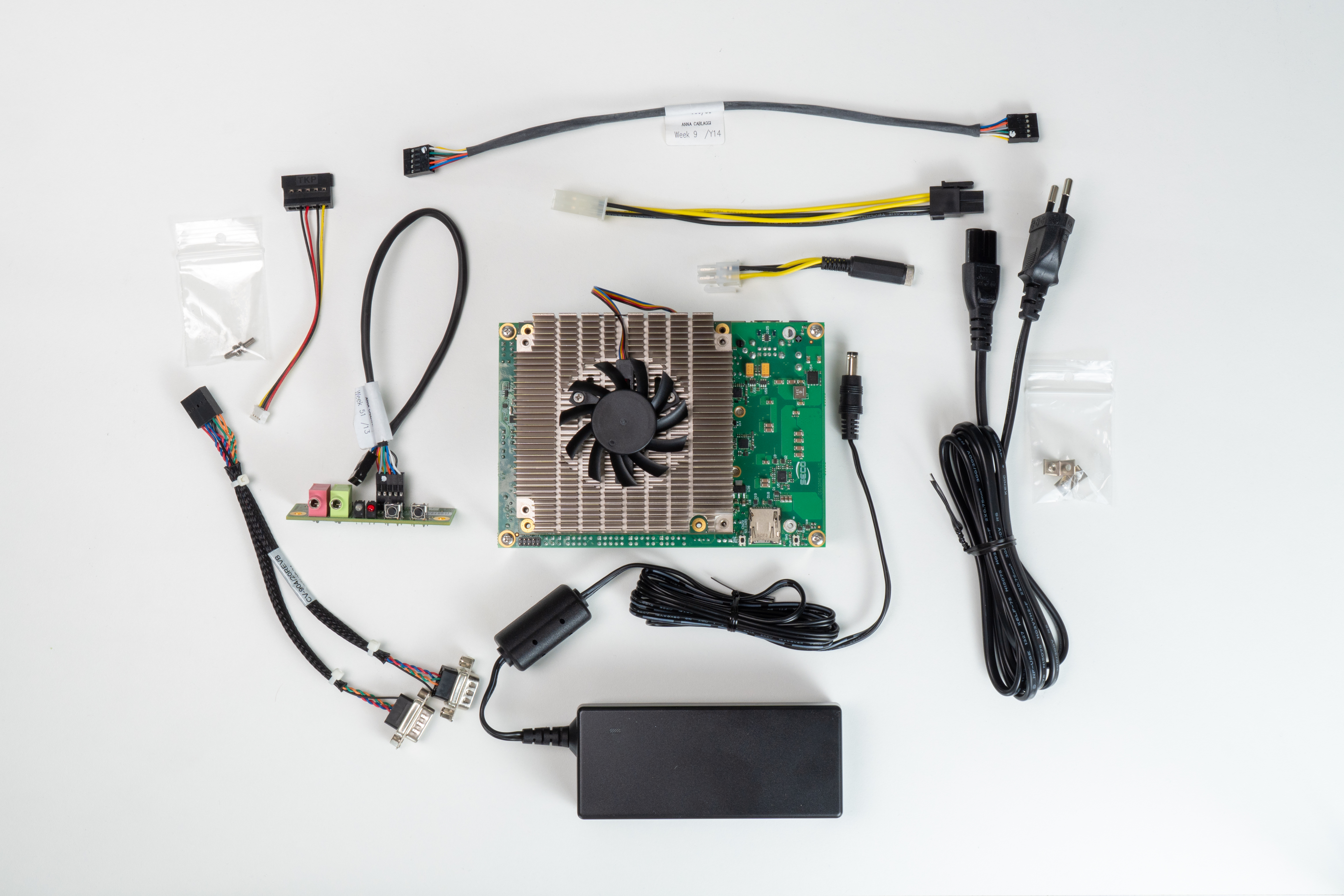
The Evaluation Kit includes everything you need to power up the ES1 platform and start testing basic I/O.
In the box:
- 1× Carrier board (Evaluation Carrier for COM Express Type 6)
- 1× SOM-COMe-CT6-Dragonwing-IQ-X (ES1) pre-mounted or packaged separately (specify actual)
- Active heatsink
- Brass pillar 20mm F/F
- M3 Screw 6mm
- Brass pillar 20mm M/F
- Carrier cable kit
- PSU adapter
- PSU 19V 60W
- PSU cable plug EU
- PSU cable plug US
- PSU cable plug UK
- PSU cable plug JP
Preloaded software
The ES1 Evaluation Kit is currently delivered with Windows IoT Enterprise preloaded (as provided in the current engineering setup).
Get started
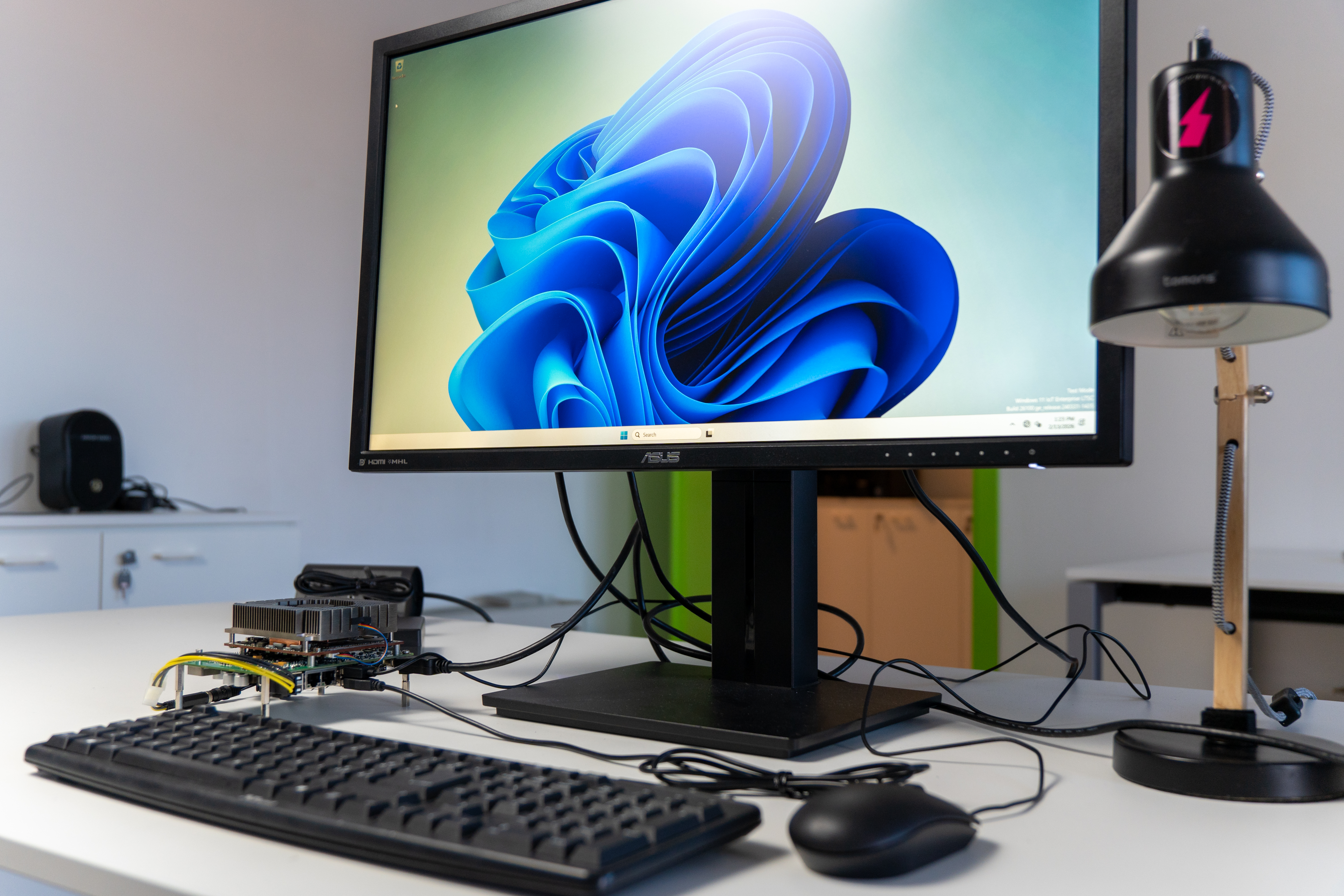
Step 1 - Connect display, keyboard, mouse
- Connect a monitor via DisplayPort (see cable note below).
- Connect a USB keyboard and mouse.
Important cable note Use DisplayPort-to-DisplayPort OR mini DisplayPort-to-DisplayPort. DO NOT USE mini DisplayPort-to-HDMI or DisplayPort-to-HDMI cables/adapters (not supported in the current ES1 setup).
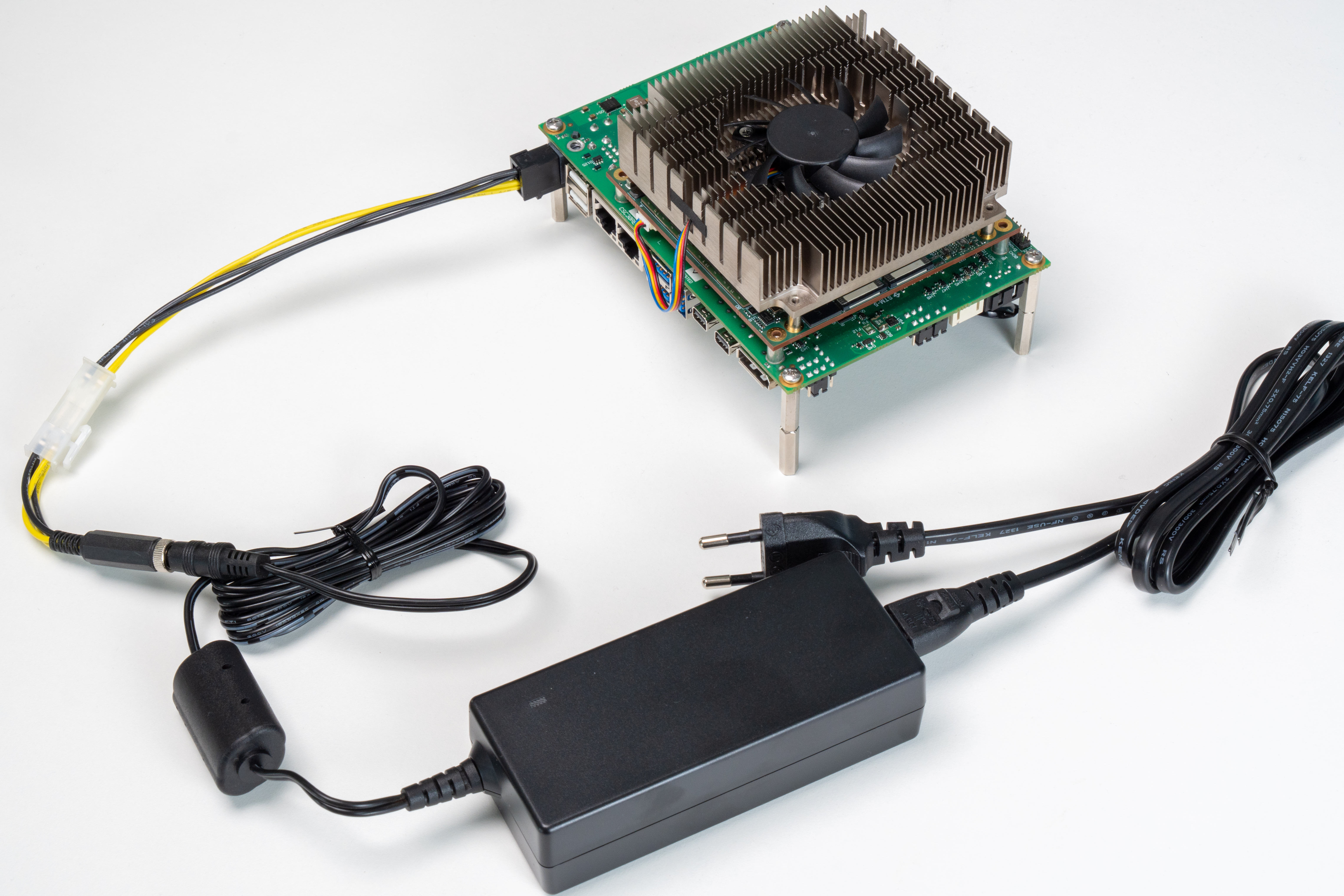
Step 2 - Connect the power adapter assembly
- Assemble the power adapter using the included components (adapter + cable(s) plus any intermediate modules, depending on the kit version).
- Connect DC power to the carrier board.
- Wait about 1 minute for:
- the monitor to show signal,
- keyboard and mouse to become active,
- Windows to complete boot.
If the display remains black after ~1 minute:
- Verify you are using a DP-to-DP (or miniDP-to-DP) cable.
- Try another monitor input / confirm monitor is set to the correct input.
I/O status for ES1 (what works / what doesn’t)
This section must give immediate clarity on what can be tested today.
Not supported module's I/Os:
- CSI not supported.
- I2S not supported.
- DDI on USB4 not supported.
- LVDS configuration not supported.
- CAN and serial configurations have not been validated.
- Management signals (Reset, Power, Sleep, and lid button) not supported.
- SATA is not present on the module, therefore it will not be available on C30 either.
- The carrier Ethernet controller is not supported, therefore only the module Ethernet lanes will be routed to the Ethernet connector.
- GPIOs are managed by the embedded controller, therefore they are currently not supported.
- C30 USB 2.0 ports work only with modules equipped with a USB hub
- For IQX5121 SKUs only, only PCIe4 is supported, limited to the Ethernet controller functionality on F31. The other PCIe buses are not supported.
Kit's visual I/O map
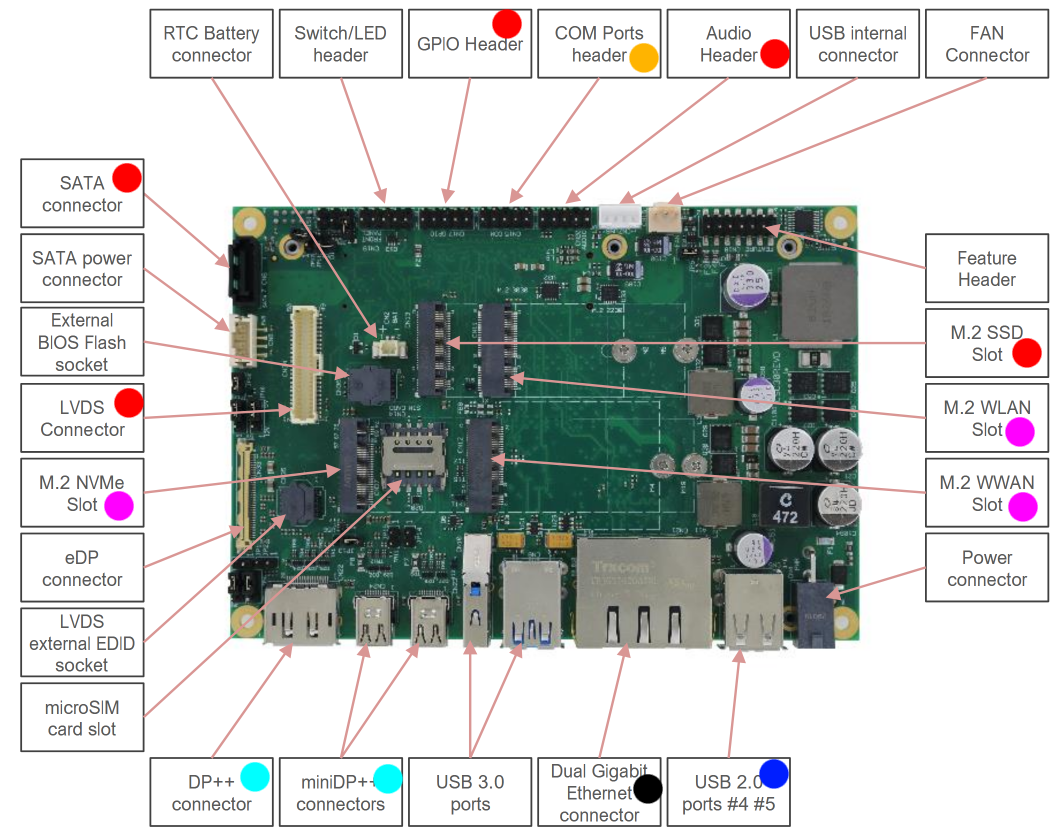
Legenda:
- Red: unsupported
- Black: Only one ethernet supported
- Magenta: unsupported on IQX5121 CPU
- Blue: unsupported on modules without USB Hub option
- Azure: Available only as DP
- Yellow: untested
Support and feedbacks
If you find issues or missing information, contact SECO support at support.seco.com:
- Product: SOM-COMe-CT6-Dragonwing-IQ-X
- Kit: Engineering Sample Evaluation Kit (ES1)
- Your kit serial number (if available)